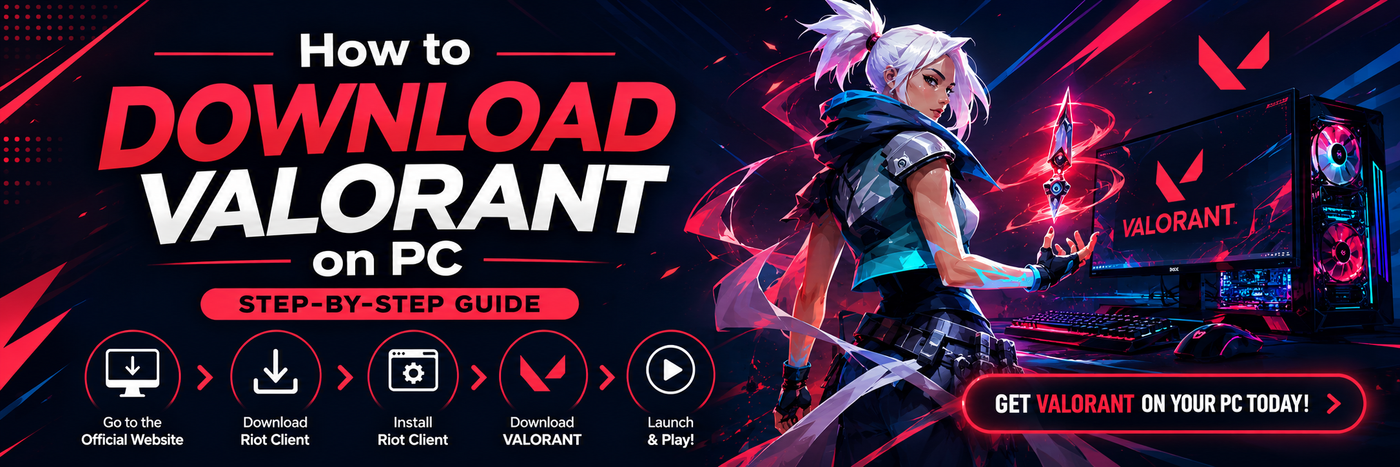
How to Download VALORANT on PC: Step-by-Step Guide

In case you’re looking for downloading VALORANT on PC, the simplest way to do it in 2026 remains the same: visit the VALORANT download website, create a Riot Account, download the game through the Riot Client, and ensure that your PC meets the required specifications. In 2026, Riot has confirmed that all games on PC are downloaded using the Riot Client, and VALORANT continues to be free-to-play.
It's a straightforward guide. You will find out how to download VALORANT, what PC requirements you need to meet, and how to solve installation issues quickly. No outdated PC tips, no technical terms, and no fictional gaming tricks.
What you need before downloading VALORANT on PC

Ensure your computer supports 64-bit versions of Windows, which are currently Windows 10 (Build 19041+) or Windows 11 64-bit, with SSE 4.2/AVX instructions, 4 GB RAM, and 1 GB VRAM. Additionally, Riot also breaks down its PC spec tiers based on minimum, recommended, and high-end specs for the game at 30 FPS, 60 FPS, and 144+ FPS, respectively.
As per their site, the low-end CPU/ GPU combos for VALORANT include Intel Core i3-540 and AMD Athlon 200GE CPUs with Intel HD 4000 and AMD Radeon R5 220 GPUs. To get an enjoyable gaming experience with stable 60 FPS, some good CPU/ GPU combos would be Intel Core i3-4150 and AMD Ryzen 3 1200 CPUs, along with NVIDIA GeForce GT 730 and AMD Radeon R7 240 GPUs. For better performance, some great CPU/ GPU combos would be Intel Core i5-9400F and AMD Ryzen 5 2600X CPUs and GTX 1050 Ti, Radeon R7 370, and Intel Arc A310 GPUs.
In case you are using Windows 11, Riot suggests that you have TPM 2.0 and UEFI Secure Boot enabled too. This is crucial since the anti-cheat system used by VALORANT requires stricter PC security settings.
Step 1: Visit the official VALORANT download website
Visit the official VALORANT download website and download the game by clicking the Download button. The official VALORANT download website is where your PC installation begins, and according to Riot’s guide to reinstalling VALORANT, you may visit Riot’s website, choose VALORANT, and download the game client, which takes care of installation.
Stay within the official Riot site. This way, you avoid unofficial mirrors, rogue installers, and old launcher files. The official VALORANT platform page clearly shows that the game is available on PC, and that a Riot Account is required.
Step 2: Sign in or create a Riot Account

Should you have an existing Riot account, log into your account once prompted. Otherwise, you need to create your Riot account before proceeding further.
For new gamers, this is the easiest step to follow. Simply create an account, verify your email address if necessary, and store the login credentials safely. Remember that Riot uses the same account management system for all of its PC games, which means this particular account will be used to launch VALORANT via the Riot Client.
Step 3: Download and install the Riot Client
In 2026, according to Riot, all of their games will only be launched via the Riot Client. The client, therefore, acts as the primary launcher and, regardless of desktop shortcuts, launches the tabbed version of the desired game within the client.
During the process of starting the VALORANT download, the Riot Client acts as the launcher for the installation of the game. Riot explains that the download of their game from their site includes the installation of the Riot Client, which facilitates the process of downloading and installing the actual game.
After the client has been downloaded, sign in with your Riot Account and wait while the installation process completes. At this point, VALORANT, alongside its anti-cheat mechanism, is downloaded and installed onto your PC. Riot states that Vanguard is downloaded with the installation of a game from Riot, such as VALORANT.
Step 4: Let VALORANT finish downloading
Once you start the installation process from the Riot Client, allow the whole game to be installed first before you proceed to do other things. It’s important because q is a tactical shooting game, meaning that its game files will not be small in size. If you open it immediately without finishing the installation process, there might be an error on your computer.
In case you have an unstable connection, it’s better to leave the client running instead of closing it and starting again when you think you’re done.
Step 5: Launch VALORANT from the Riot Client
Once the installation process is complete, start VALORANT using the Riot Client. As per the latest Riot FAQ, this is now the default way of launching any game developed by Riot for Windows PCs. The older desktop shortcuts will continue to work since they will only launch the Riot Client page for the respective game.
This does not cause any trouble for the player. According to Riot, this approach provides a more convenient way of accessing social media, patch notes, esports, and game-related content.
Step 6: Finish first-time setup inside the game
On the first login of VALORANT, you'll be instructed on how the gameplay works. According to Riot Games' Beginner's Guide, new accounts undergo Agent Select mode where the agent is selected, have some agents locked, but can be unlocked as the player progresses.
Riot also outlines the fundamental mechanics of playing VALORANT: rounds of attacking or defending, equipping your weapons before rounds, working alongside your teammates to plant and diffuse the spike. This is relevant for the following reason: at launch, it is important to set up game options and controls.
What to do if VALORANT will not launch
In the case where the game installs but won’t launch, first check whether your machine fits the required specifications according to Riot’s guidelines. In the case of Windows 11, the requirements include Secure Boot and TPM 2.0, according to Riot's Secure Boot Guide, and BIOS boot mode has to be UEFI and not Legacy or CSM, while the disk format has to be GPT and not MBR.
Riot's Secure Boot Guide even demonstrates where one would access BIOS/UEFI configuration, and how to locate Secure Boot in the process. The guide also shows where one can verify that their machine has secure boot activated in Windows via msinfo32. One must keep in mind that BIOS settings differ from company to company. It is thus advisable to use the computer documentation.
However, in the case of a client-side problem and not a BIOS problem, there is also a full repair tool on the Riot client. Login into Riot Client and navigate to the Settings tab. Here you can select the game and press on repair.
How to reinstall VALORANT cleanly
Should the installation be corrupt, the recommended solution by Riot for un-installation and re-installation is to delete the VALORANT and Riot Client folders from the directory at C:\Riot Games, remove any associated files from the %localappdata% directory, reboot the computer, and finally perform the re-installation using the website on Riot’s platform.
This approach proves to be more efficient than blindly removing some files and praying for the problem to disappear.
Best settings to check after installing
Once VALORANT is up and running, go into the game settings and ensure that it runs in a configuration suited for your computer. The Riot Beginner’s Guide states that one should always start by ensuring the game settings are correct, since they affect one’s experience playing.
For new players, the key thing to note is that they should not focus on setting their game settings the same way professionals do. They should simply begin with a solid resolution and an experience where the game responds to actions and go from there.
Common questions about downloading VALORANT on PC
VALORANT free to play on PC?
Yes, according to Riot’s platform page, VALORANT is free to play.
Do I need a Riot Account?
Yes, according to Riot, you need a Riot Account to log in and play.
Do I need a separate launcher for the game?
According to the current version of Riot’s FAQ, all Riot games for PC are played via Riot Client, and according to Riot’s support pages, downloading from Riot’s website will install the client that manages the installation of the game.
Windows 11 additional security requirements? Yes, according to Riot’s specs page, Windows 11 needs TPM 2.0 and UEFI Secure Boot.
Final take
The process of downloading VALORANT PC becomes much simpler by following the official Riot path, which requires visiting the official website where users have to log in using their Riot Accounts, perform an installation through the official Riot Client, and make sure that their PCs comply with all the latest security and Windows system requirements.
The 2026-year setup introduced by Riot is all about the client, which makes the most efficient and safe way of installation, therefore, the cleanest and most reliable method of performing this procedure. Preparation for installing VALORANT is another key factor that differentiates a smooth installation from a difficult one. Thus, one needs to check the system specifications and use the Riot repair tools.
For Those interested, here is their Valorant merchandise collection:
https://bowchika.in/collections/Valorant